> ## Documentation Index
> Fetch the complete documentation index at: https://strettch-make-section-id-optional.mintlify.site/llms.txt
> Use this file to discover all available pages before exploring further.
# Managing DNS
> Register a domain on Strettch Cloud, configure nameservers, and create or edit A, AAAA, CNAME, MX, and TXT DNS records from the dashboard.
## Registering a Domain
Before you can manage DNS records, you need to register a domain with Strettch Cloud DNS.
**Important:** Strettch Cloud does not sell domain names. You must first purchase your domain from a domain registrar (such as Namecheap, GoDaddy, or Cloudflare). Once you own the domain, you can register it with Strettch Cloud to manage its DNS records.
Go to your team's dashboard and select the **Domains** tab.
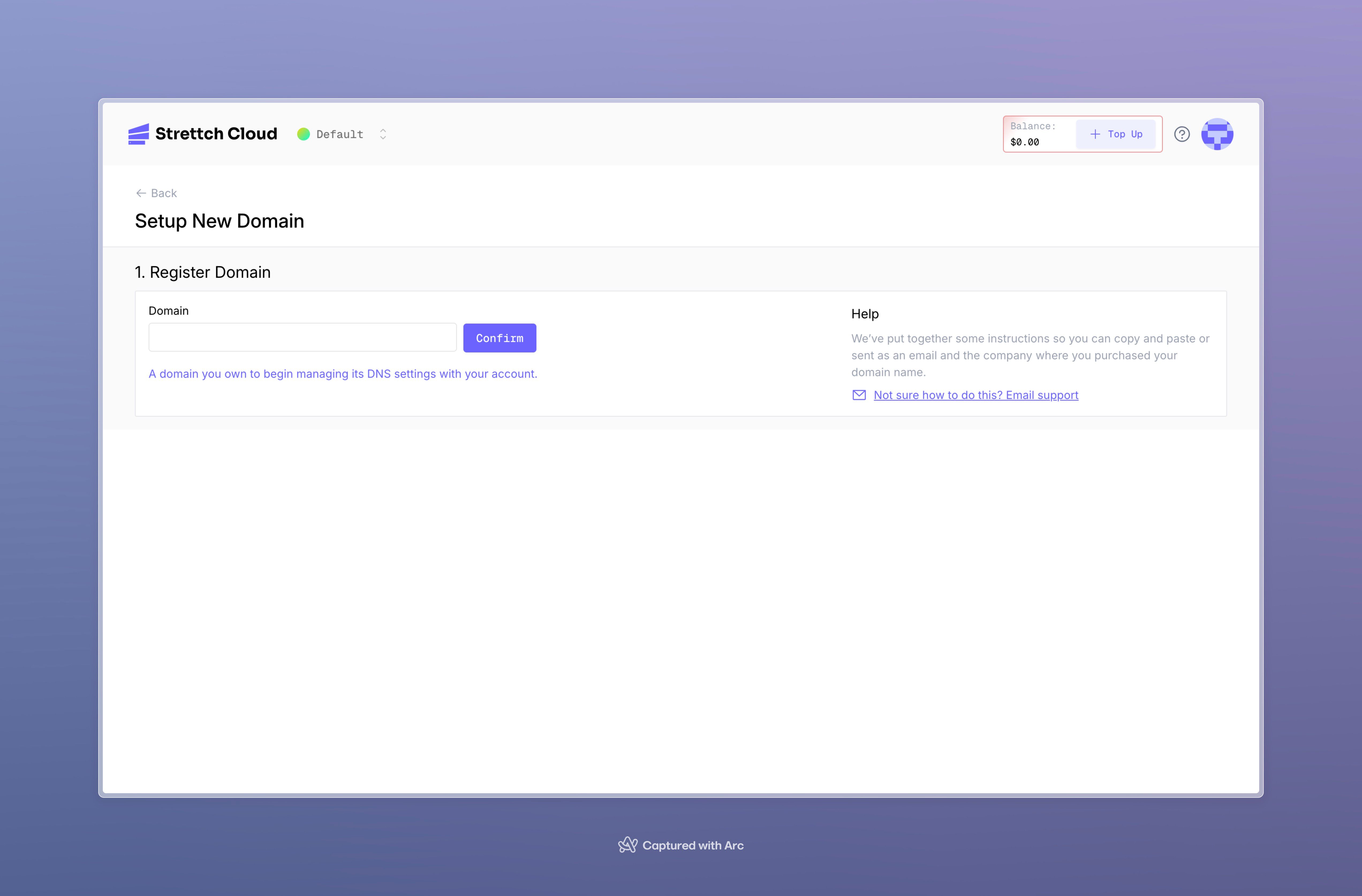
Click **Register Domain**. Enter the domain address you want to register (e.g., `example.com`).
Click **Confirm** to validate the domain availability.
* If the domain name is invalid or unavailable, you'll see a notification. Choose a different domain name.
* If the domain is valid, you'll move to the nameserver configuration step.
 ## Adding Nameservers to Your Domain Provider
After validating your domain, configure your domain provider to use Strettch Cloud's nameservers.
In the domain setup wizard, you'll see a table with Strettch Cloud nameservers. Click the **copy icons** to copy each nameserver:
* `ns1.strettch.com`
* `ns2.strettch.com`
## Adding Nameservers to Your Domain Provider
After validating your domain, configure your domain provider to use Strettch Cloud's nameservers.
In the domain setup wizard, you'll see a table with Strettch Cloud nameservers. Click the **copy icons** to copy each nameserver:
* `ns1.strettch.com`
* `ns2.strettch.com`
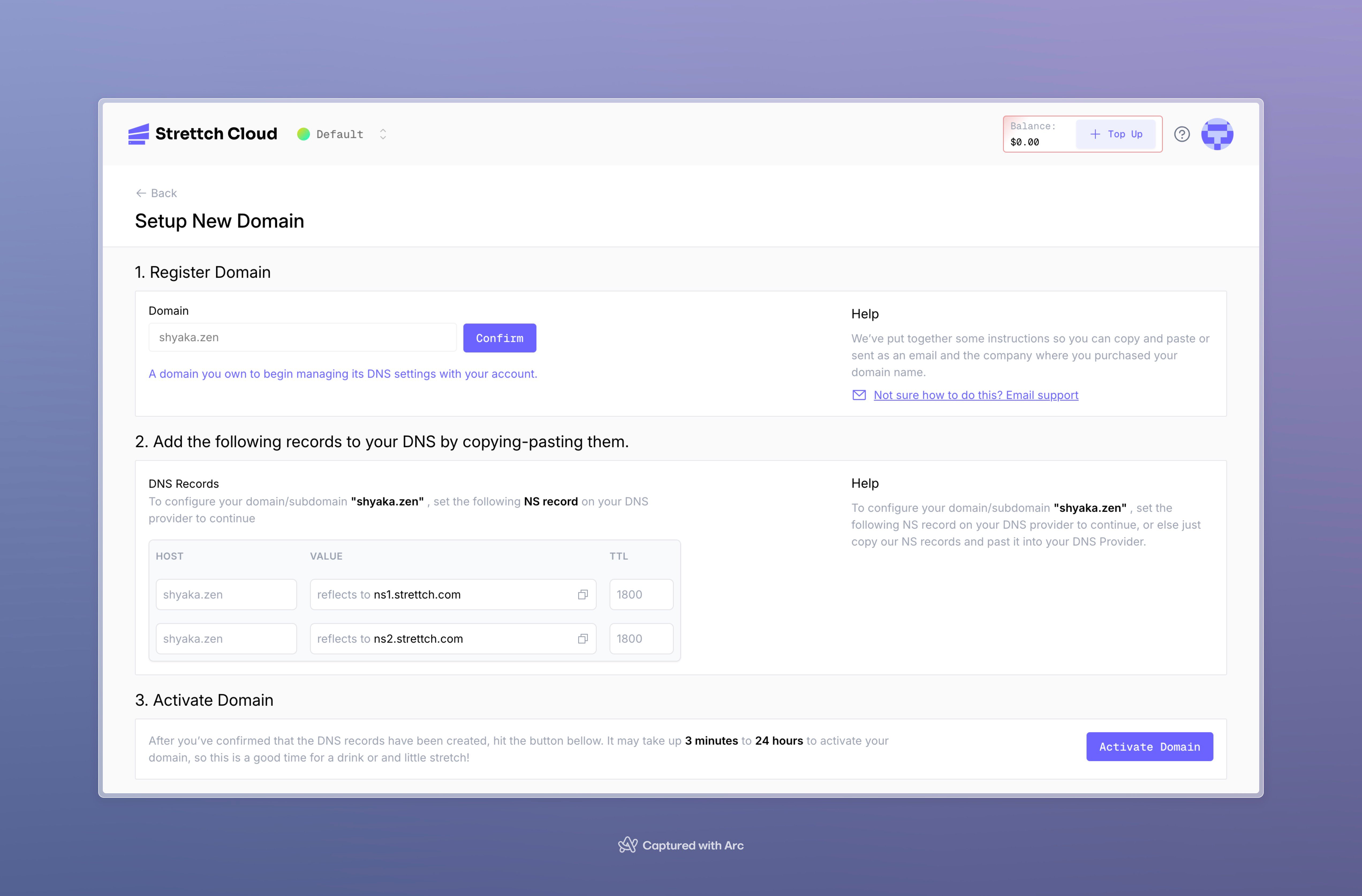 Log in to your domain registrar (where you purchased the domain). Navigate to your domain's DNS or nameserver settings. Replace the existing nameservers with the Strettch Cloud nameservers you copied.
The exact steps vary by registrar. We have detailed guides for popular providers:
View step-by-step instructions for Vercel, Cloudflare, Bunny, and Namecheap
Return to the Strettch Cloud domain setup wizard. Scroll down and click the **Activate domain** button to complete the registration.
You must add Strettch Cloud's nameservers to your domain provider. Without this step, your domain will remain inactive and DNS records will not work.
## Verifying Domain Status
After activating your domain, check its status to ensure proper configuration.
After domain creation, you'll be redirected to the domains list for your team. Each domain shows its current status.
Domain activation can take between **3 minutes** and **24 hours** depending on your domain provider's propagation speed.
* **Activating**: Domain is waiting for nameserver propagation to complete
* **Active**: Domain is fully operational and DNS records are working
* **Inactive**: Domain failed to activate (nameservers not configured correctly)
Log in to your domain registrar (where you purchased the domain). Navigate to your domain's DNS or nameserver settings. Replace the existing nameservers with the Strettch Cloud nameservers you copied.
The exact steps vary by registrar. We have detailed guides for popular providers:
View step-by-step instructions for Vercel, Cloudflare, Bunny, and Namecheap
Return to the Strettch Cloud domain setup wizard. Scroll down and click the **Activate domain** button to complete the registration.
You must add Strettch Cloud's nameservers to your domain provider. Without this step, your domain will remain inactive and DNS records will not work.
## Verifying Domain Status
After activating your domain, check its status to ensure proper configuration.
After domain creation, you'll be redirected to the domains list for your team. Each domain shows its current status.
Domain activation can take between **3 minutes** and **24 hours** depending on your domain provider's propagation speed.
* **Activating**: Domain is waiting for nameserver propagation to complete
* **Active**: Domain is fully operational and DNS records are working
* **Inactive**: Domain failed to activate (nameservers not configured correctly)
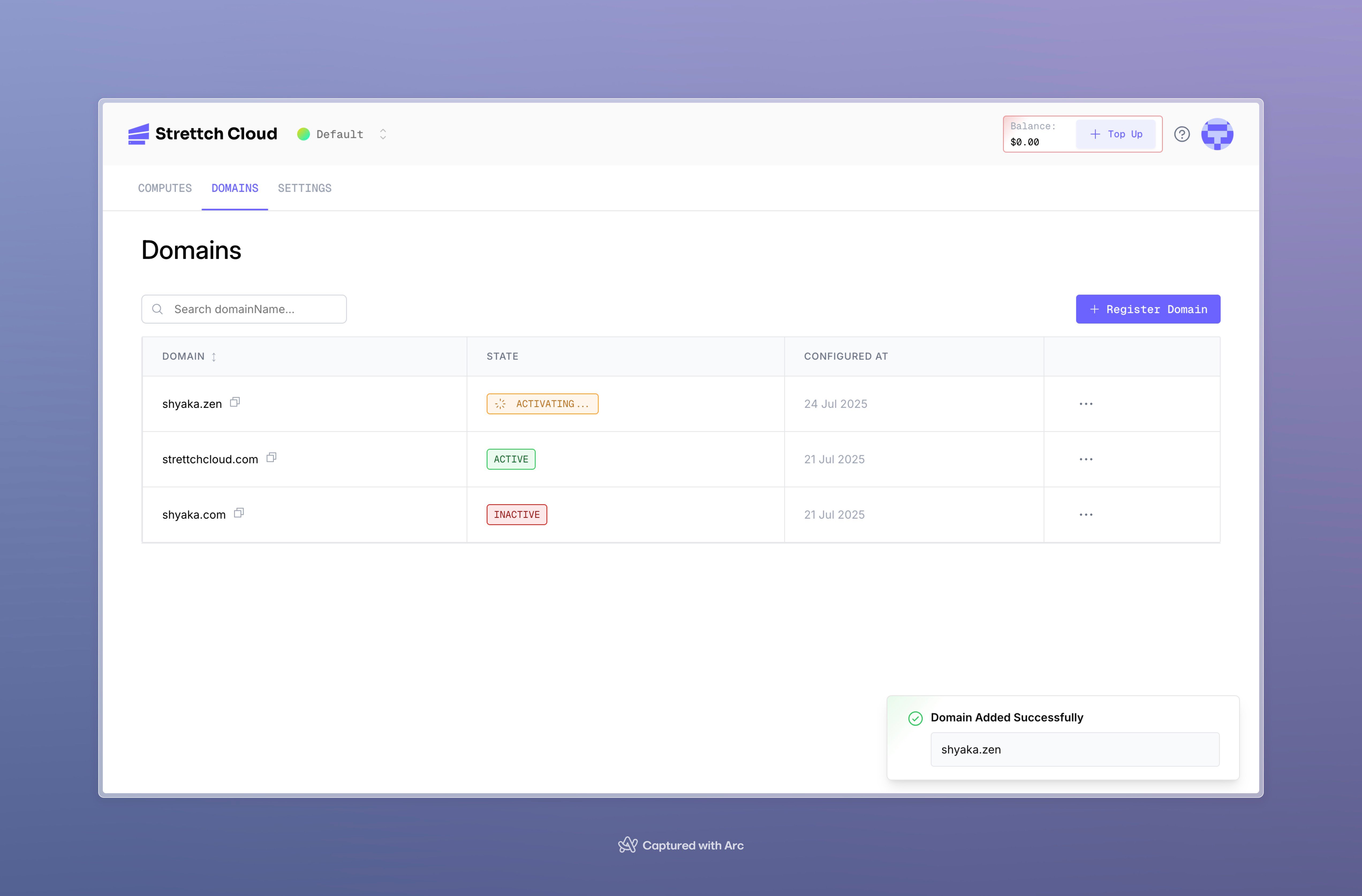 If a domain remains inactive beyond 24 hours, verify with your domain registrar that Strettch Cloud's nameservers (`ns1.strettch.com` and `ns2.strettch.com`) are correctly configured.
## Managing DNS Records
Once your domain is active and using Strettch Cloud's nameservers, you can manage its DNS records.
Your domain must use **Strettch Cloud's nameservers** for DNS records to work. If you're using a third-party domain registrar, ensure you've added our nameservers as described above.
### Supported Record Types
Strettch Cloud DNS supports the following record types:
| Record Type | Hostname Example | Description |
| ----------- | ----------------------- | ------------------------------------------------------------------ |
| **A** | `example.com` | Redirects to IPv4 address `192.0.2.1` |
| **AAAA** | `example.com` | Redirects to IPv6 address `2001:0db8:85a3:0000:0000:8a2e:0370:733` |
| **SRV** | `_sip._tcp.example.com` | Service located at `10 60 5060 sip.example.com` |
| **TXT** | `_dmarc.example.com` | Returns `v=DMARC1; p=none; rua=mailto:dmarc@example.com` |
| **MX** | `example.com` | Mail handled by `mail.example.com` |
| **CNAME** | `blog.example.com` | Is an alias of `wiki.example.com` |
### Adding DNS Records
On your team's dashboard, go to the **Domains** tab. Click on the domain you want to manage to open its Advanced Settings page.
On the Advanced Settings page, click **Add new record**. Fill out the DNS Record form with the following information:
**Name**: The prefix or subdomain for the record. For `www.example.com`, enter `www`. For the root domain, leave blank or use `@`.
**Type**: Select the record type (`A`, `AAAA`, `CNAME`, `MX`, `TXT`, `SRV`, or `NS`).
**Value**: The target value for the record (IP address, domain name, or text content).
**TTL**: Time to live in seconds. Default is 60 seconds. Lower values mean faster propagation but more DNS queries.
**Comment** (optional): Add a note explaining what this record is for.
**Additional Fields**: Some records require extra data. For example, MX records need a priority value.
If a domain remains inactive beyond 24 hours, verify with your domain registrar that Strettch Cloud's nameservers (`ns1.strettch.com` and `ns2.strettch.com`) are correctly configured.
## Managing DNS Records
Once your domain is active and using Strettch Cloud's nameservers, you can manage its DNS records.
Your domain must use **Strettch Cloud's nameservers** for DNS records to work. If you're using a third-party domain registrar, ensure you've added our nameservers as described above.
### Supported Record Types
Strettch Cloud DNS supports the following record types:
| Record Type | Hostname Example | Description |
| ----------- | ----------------------- | ------------------------------------------------------------------ |
| **A** | `example.com` | Redirects to IPv4 address `192.0.2.1` |
| **AAAA** | `example.com` | Redirects to IPv6 address `2001:0db8:85a3:0000:0000:8a2e:0370:733` |
| **SRV** | `_sip._tcp.example.com` | Service located at `10 60 5060 sip.example.com` |
| **TXT** | `_dmarc.example.com` | Returns `v=DMARC1; p=none; rua=mailto:dmarc@example.com` |
| **MX** | `example.com` | Mail handled by `mail.example.com` |
| **CNAME** | `blog.example.com` | Is an alias of `wiki.example.com` |
### Adding DNS Records
On your team's dashboard, go to the **Domains** tab. Click on the domain you want to manage to open its Advanced Settings page.
On the Advanced Settings page, click **Add new record**. Fill out the DNS Record form with the following information:
**Name**: The prefix or subdomain for the record. For `www.example.com`, enter `www`. For the root domain, leave blank or use `@`.
**Type**: Select the record type (`A`, `AAAA`, `CNAME`, `MX`, `TXT`, `SRV`, or `NS`).
**Value**: The target value for the record (IP address, domain name, or text content).
**TTL**: Time to live in seconds. Default is 60 seconds. Lower values mean faster propagation but more DNS queries.
**Comment** (optional): Add a note explaining what this record is for.
**Additional Fields**: Some records require extra data. For example, MX records need a priority value.
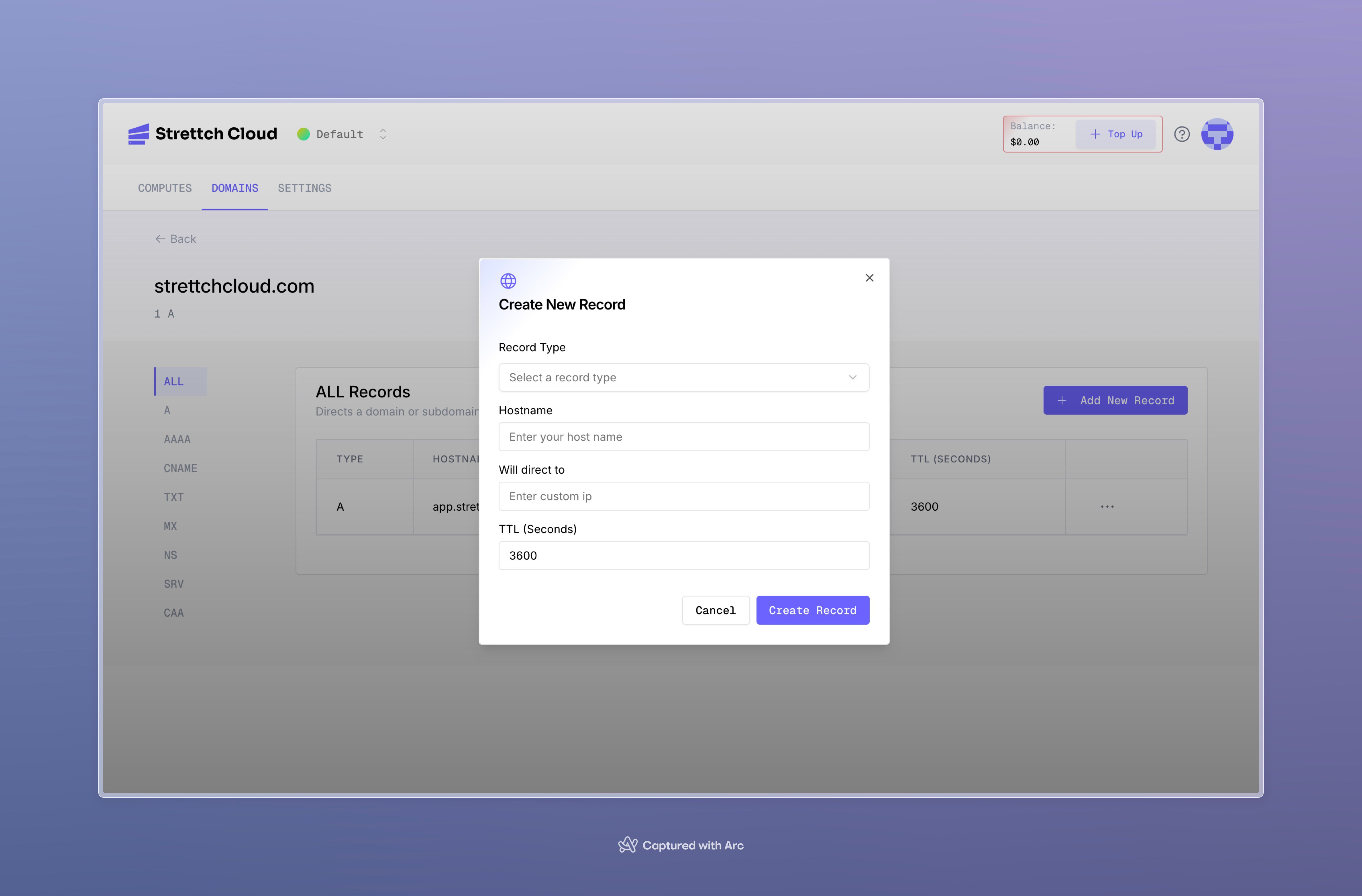 Click **Create Record** to add the DNS record. Changes take effect immediately.
### Verifying DNS Records
After adding or modifying DNS records, verify they're configured correctly.
**Using Third-Party Tools**
Use online tools to check DNS propagation globally:
* [DNS Checker](https://dnschecker.org)
* [DNS Map](https://dnsmap.io)
These tools show how your DNS records appear in different regions worldwide.
**Using Command Line**
Check DNS records directly using the `dig` command:
```bash Check A record theme={null}
dig A api.example.com +short
```
```bash Check MX record theme={null}
dig MX example.com +short
```
```bash Check TXT record theme={null}
dig TXT _dmarc.example.com +short
```
```bash Check CNAME record theme={null}
dig CNAME blog.example.com +short
```
The `+short` flag returns only the record value without additional information.
### Removing DNS Records
On your team's dashboard, select the **Domains** tab. Click on the domain containing the record you want to delete.
On the Advanced Settings page, locate the record you want to remove. Click the ellipsis menu **(⋯)** next to the record and select **Delete**.
Click **Create Record** to add the DNS record. Changes take effect immediately.
### Verifying DNS Records
After adding or modifying DNS records, verify they're configured correctly.
**Using Third-Party Tools**
Use online tools to check DNS propagation globally:
* [DNS Checker](https://dnschecker.org)
* [DNS Map](https://dnsmap.io)
These tools show how your DNS records appear in different regions worldwide.
**Using Command Line**
Check DNS records directly using the `dig` command:
```bash Check A record theme={null}
dig A api.example.com +short
```
```bash Check MX record theme={null}
dig MX example.com +short
```
```bash Check TXT record theme={null}
dig TXT _dmarc.example.com +short
```
```bash Check CNAME record theme={null}
dig CNAME blog.example.com +short
```
The `+short` flag returns only the record value without additional information.
### Removing DNS Records
On your team's dashboard, select the **Domains** tab. Click on the domain containing the record you want to delete.
On the Advanced Settings page, locate the record you want to remove. Click the ellipsis menu **(⋯)** next to the record and select **Delete**.
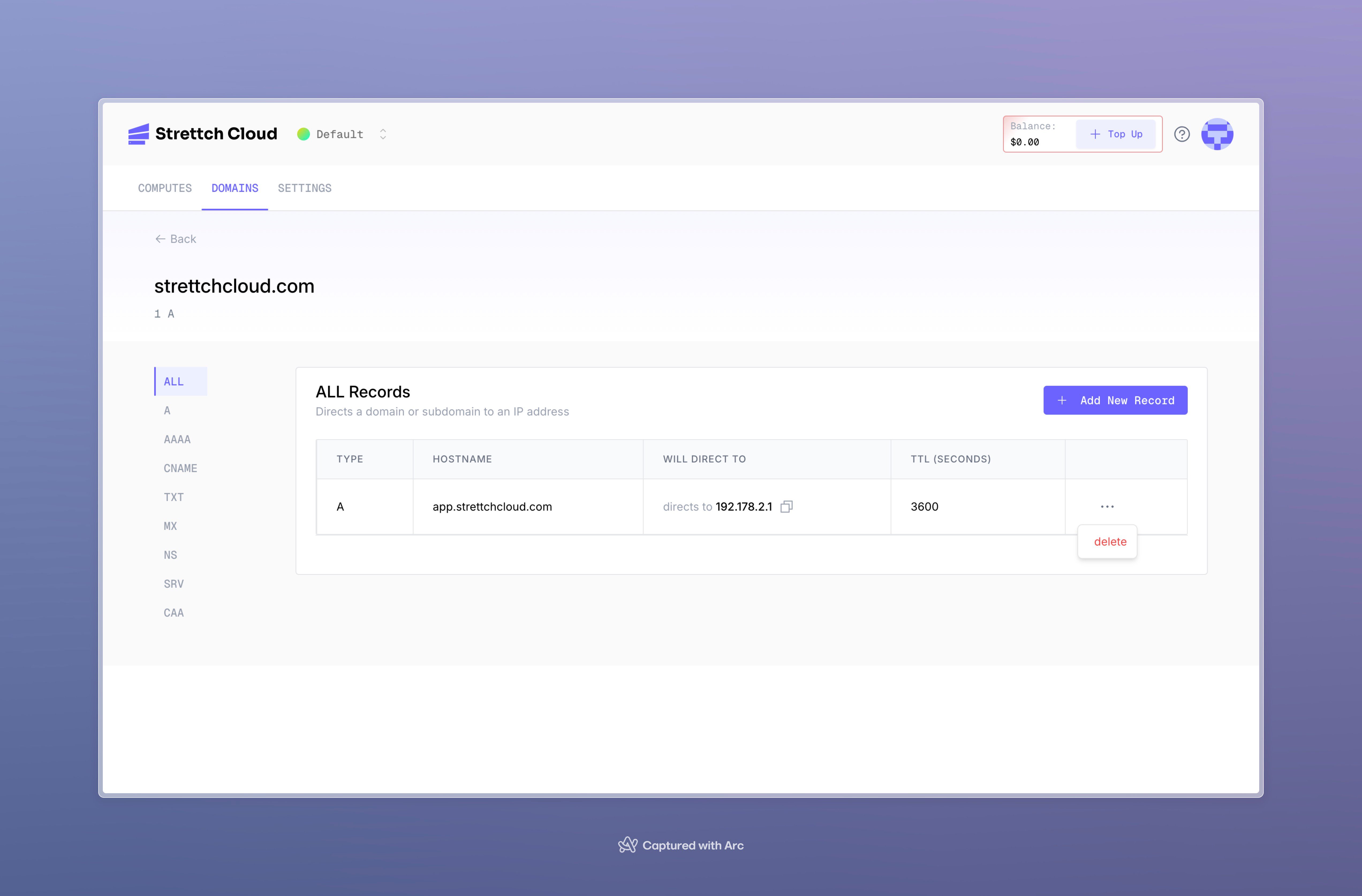 Follow the prompts to confirm deletion. The record will be removed immediately.
## Next Steps
Learn about DNS concepts and how Strettch Cloud DNS works
Deploy applications and connect them to your domains
**Need help?** Contact our [support team](mailto:cloud@strettch.com) or visit [cloud.strettch.com](https://cloud.strettch.com).
Follow the prompts to confirm deletion. The record will be removed immediately.
## Next Steps
Learn about DNS concepts and how Strettch Cloud DNS works
Deploy applications and connect them to your domains
**Need help?** Contact our [support team](mailto:cloud@strettch.com) or visit [cloud.strettch.com](https://cloud.strettch.com).