> ## Documentation Index
> Fetch the complete documentation index at: https://strettch-make-section-id-optional.mintlify.site/llms.txt
> Use this file to discover all available pages before exploring further.
# Invite and Manage Team Members
> Step-by-step guide to inviting members, changing roles, switching teams, and updating team avatars in your Strettch Cloud account.
## Inviting new members to a team
1. Navigate to your **Team Settings**
2. Click **Invite Members**. Input an email address and select a role (Admin or Member).
* **Members** have access to manage emails, domains and webhooks.
* **Admins** have all Member permissions plus the ability to invite users, update payments, and delete the team.
3. The new member will receive an email invitation to join the team.
The new invited member will be under **pending invitations**
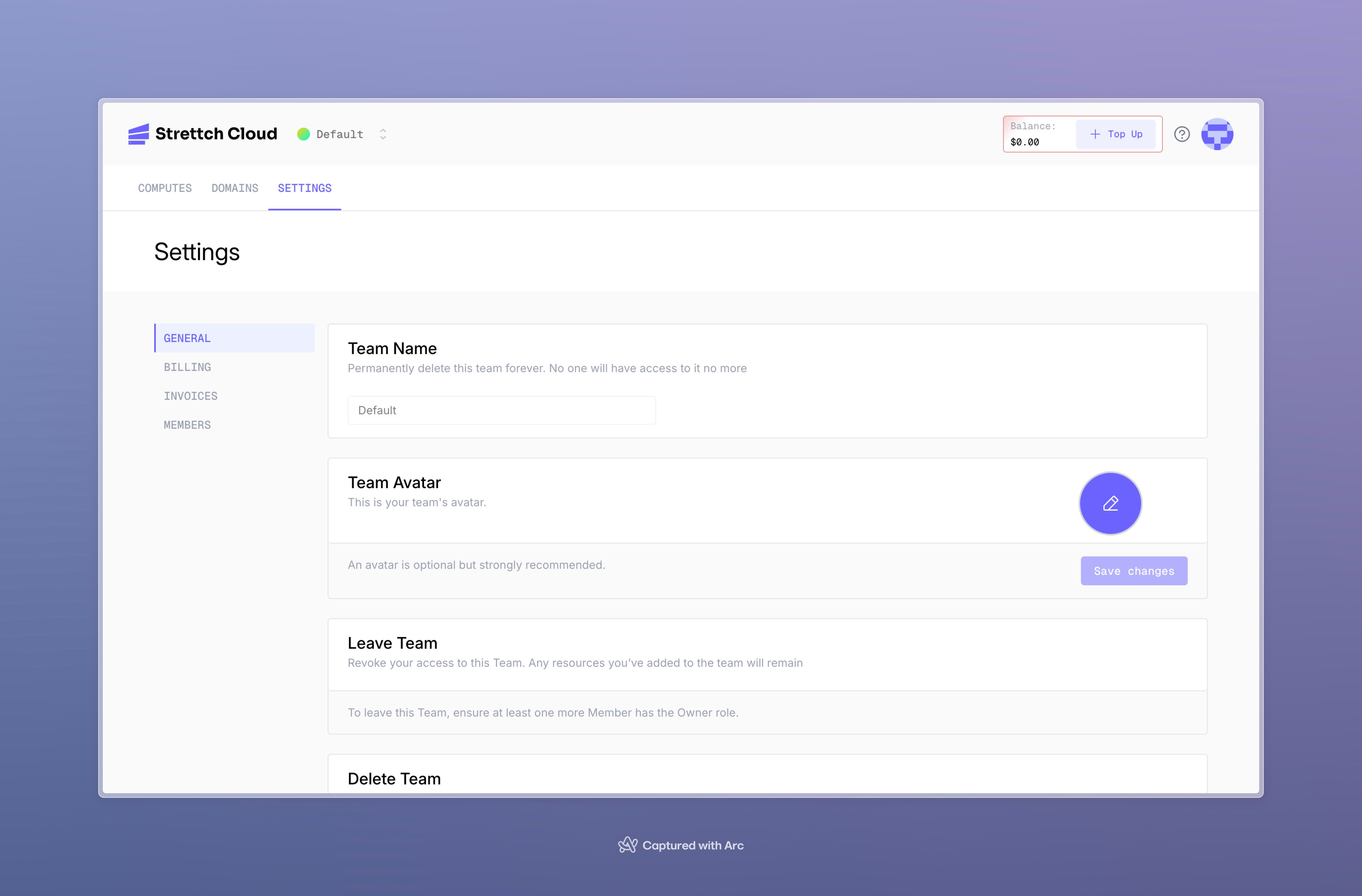
## Change team avatar
1. Navigate to your **Team Settings**
2. Click **upload input**. nect to the avatar placeholders.
3. Upload an image file to use as the team avatar.
 ## Swithing between teams
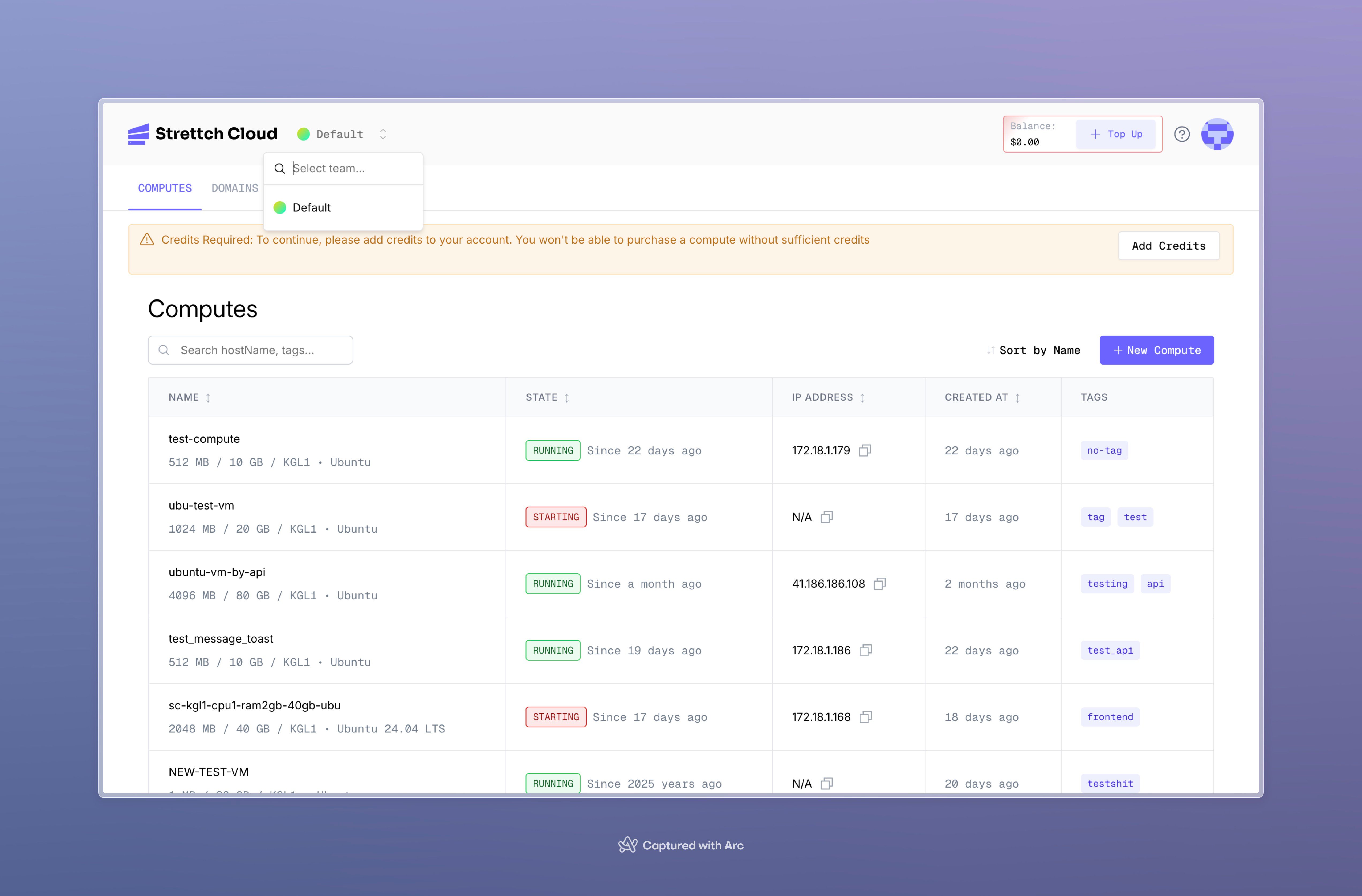
After accepting an invite from the account owner, users can switch between teams:
1. Click on the **team name** in the top left corner of any Strettch cloud page.
2. A dropdown menu will appear, listing all the teams you belong to.
3. Select a team to switch between them.
## Swithing between teams
After accepting an invite from the account owner, users can switch between teams:
1. Click on the **team name** in the top left corner of any Strettch cloud page.
2. A dropdown menu will appear, listing all the teams you belong to.
3. Select a team to switch between them.
 ## Change the team member roles
As an admin of your team, you can change the role of members in your team.
1. Navigate to your **Team Settings**.
2. Find the user you want to change.
3. Select the more options button **...** and choose **edit**.
## Change the team member roles
As an admin of your team, you can change the role of members in your team.
1. Navigate to your **Team Settings**.
2. Find the user you want to change.
3. Select the more options button **...** and choose **edit**.
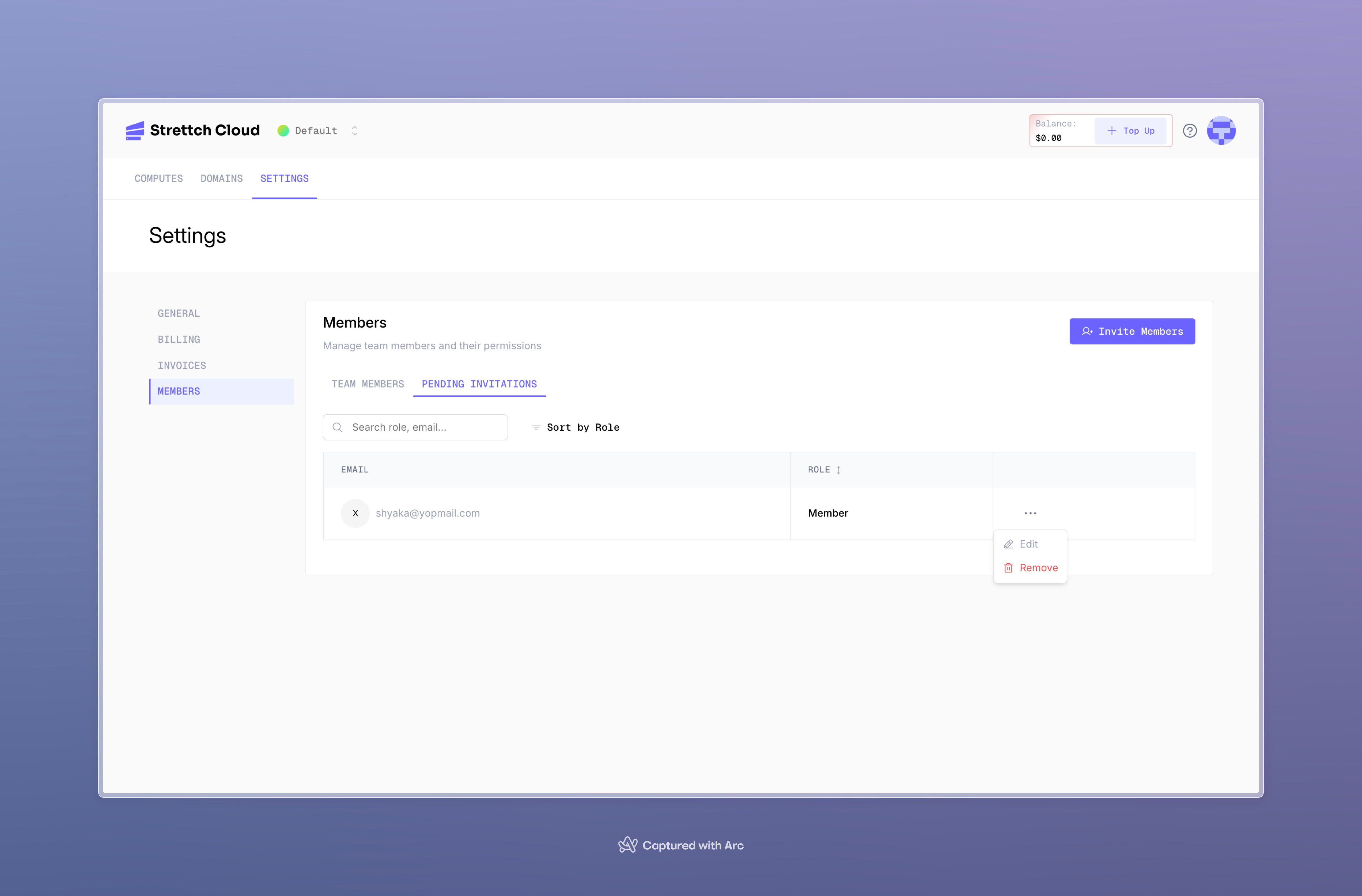 Upon confirmation, your team member will be given the new role.
## Leave your Strettch cloud team
If your team has another admin, you can leave your team by following these steps:
1. Navigate to your **Team Settings**.
2. Under members **...** click on next to your name for more options.
3. Select the **Leave Team** button.
Upon confirmation, you will leave your team.
**Need help?** Contact our [support team](mailto:cloud@strettch.com) or stay tuned at [our site](https://cloud.strettch.com).
Upon confirmation, your team member will be given the new role.
## Leave your Strettch cloud team
If your team has another admin, you can leave your team by following these steps:
1. Navigate to your **Team Settings**.
2. Under members **...** click on next to your name for more options.
3. Select the **Leave Team** button.
Upon confirmation, you will leave your team.
**Need help?** Contact our [support team](mailto:cloud@strettch.com) or stay tuned at [our site](https://cloud.strettch.com).